iPhone reminder app not working? Check these settings first
 By Radomir
Updated November 24, 2026
The short version
When an iPhone reminder app is not working, the reminder usually fired and a setting hid it. Check four places in this order: Allow Notifications for the app, your Focus, Scheduled Summary, and, in Apple Reminders, whether the reminder has a time at all. Then open the app, restart and update.
We make Pipnote, a reminder app that delivers through the Dynamic Island. It has one extra switch, Live Activities, and a section of its own below.
A reminder that never shows up is worse than no reminder. You trusted it, so you stopped remembering. In most cases nothing is broken. iOS has several layers that can hold an alert back, and each one is a switch in Settings.
The steps below go in the order worth checking: notification permission, Focus, Scheduled Summary, the Apple Reminders settings that silence a reminder on purpose, and the basic reset steps. The last part covers Pipnote, the app we make, because its Dynamic Island delivery has rules of its own.
Why is my iPhone reminder app not working?
Usually a setting holds the alert back while the reminder itself is fine. For an alert to reach you, three things must line up. The app must be allowed to notify you. Nothing on the phone may be holding the alert back, such as a Focus or Scheduled Summary. And the reminder itself must have a time that triggers an alert.
If one of those fails, the reminder can still sit in the app, correct and on time, while your phone stays quiet. That is why the fixes below are mostly settings, and why reinstalling the app is the last thing to try, not the first.
1. Check that notifications are allowed
Open Settings, tap Notifications, then tap the reminder app in the list. Apple's guide to changing notification settings has the full walkthrough.
- Allow Notifications must be on. If it is off, the app cannot alert you at all.
- Turn on the places the alert can appear: Lock Screen, Notification Center and Banners.
- Turn on Sounds if you want to hear the alert.
- If the app offers Time Sensitive Notifications, turn that on too. A Focus that allows time-sensitive alerts then lets this app's alerts through.
If the app is missing from the list, open it once and set a reminder. Apps usually ask for permission the first time they need it.
2. Check your Focus
A Focus, such as Do Not Disturb, Sleep or Work, silences every app it does not allow. A Sleep Focus you set up once can also turn itself on every night on a schedule. Look for the Focus icon in the status bar or Control Center.
To let reminders through, Apple's page on notifications during a Focus gives two ways:
- In Settings, Focus, pick the Focus, then add the reminder app under the apps it allows notifications from.
- Or turn on Time Sensitive Notifications for that Focus. Apple says this lets all apps send time-sensitive notifications immediately.
Repeat this for each Focus you use. Each one has its own list.
3. Check Scheduled Summary
Scheduled Summary collects alerts and shows them together at times you pick. That is useful for news apps. For a reminder, it means "take your pills at 8" can turn up in the 6pm summary.
Open Settings, Notifications, Scheduled Summary. If it is on, check which apps are in it. Then open the reminder app's notification settings and set Notification Delivery to Immediate Delivery (Apple's steps).
4. In Apple Reminders, give the reminder a time
Apple's own Reminders app has three settings that keep a reminder quiet on purpose. All three are in Settings, Apps, Reminders, as Apple's Reminders settings guide describes.
- A date without a time. Apple calls these all-day reminders. They only alert at the Today Notification time. If that switch is off, they never alert. Fix: give the reminder a time, or turn on Today Notification and pick a time.
- Mute Notifications. Apple describes it as turning off notifications for assigned reminders. If someone assigns you a reminder in a shared list and you hear nothing, check this.
- Shared lists. The alert time you set notifies your phone, not the other person's. They have to turn on notifications for the list on their own phone. We cover this in how to send a reminder to someone else's iPhone.
5. Open the app, restart, update
If every setting above looks right, try these in order.
- Open the reminder app. Some apps schedule alerts only while they are open. Opening the app gives it a chance to catch up.
- Restart the iPhone. It takes a minute and rules out a stuck state.
- Update iOS in Settings, General, Software Update, and update the app from the App Store.
- Set a test reminder two minutes out, lock the phone and wait. If the test arrives, the problem is with that one reminder, not the phone.
If the app is Pipnote (we make it)
Pipnote is our app, so read this part knowing that. It is a reminder app that delivers a short note through the Dynamic Island at the time you pick, for yourself or for someone you send it to. That delivery path has a few rules the settings above do not cover. They all come from how the app is built.
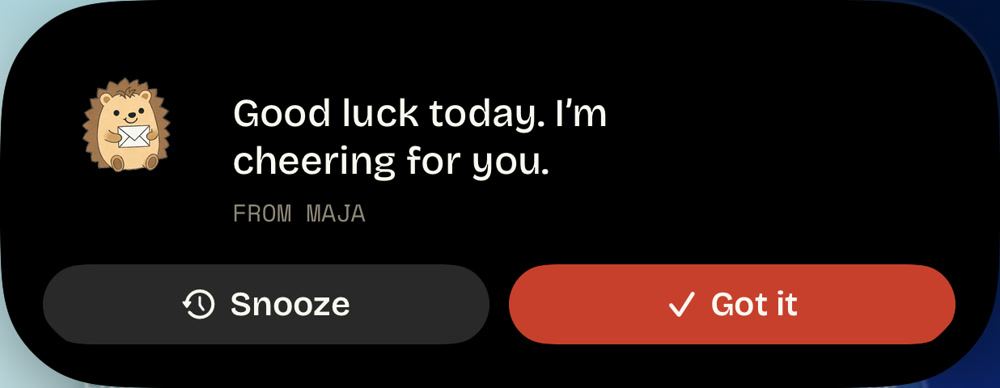
- Live Activities must be on. Pipnote arrives in the island as a Live Activity. If Live Activities are off for Pipnote, nothing can arrive there, and notes come as normal notifications instead. The app warns you on the queue screen: "Live Activities are off, so nothing can arrive in the island. Notes still come as notifications. Turn them on in Settings › Pipnote."
- Open the app within two days of the note. Notes due within 48 hours are set up to expand in the island on their own. Notes further out wait as a notification and move into the island the next time you open the app. iOS only lets an app start a Live Activity while it is open. If you never open it, the note still comes, as a notification.
- Four of your own notes in the island at once. iOS allows five Live Activities per app at a time. Pipnote uses at most four for your own notes and keeps the fifth free for a note someone sends you. Your fifth note waits as a notification until a slot frees up.
- Allow the notifications too. The notification is the backup. Pipnote sends it as Time Sensitive, so a Focus that allows time-sensitive alerts lets it through. Check steps 1 to 3 above for Pipnote as well.
- The other person needs the app. A note you send only arrives in their island if Pipnote is installed on their phone. If they open the link after the note was due, it still arrives, about two minutes later.
- iPhones without the island get the Lock Screen. Pipnote needs iOS 26 or later. On an iPhone without the Dynamic Island, the note lands on the Lock Screen as a Live Activity.
One more limit, for heavy users of any reminder app: iOS keeps at most 64 pending notifications per app and drops the extras without a warning. Pipnote stops at 60, so it never reaches that limit.
Full disclosure: this is our app
Pipnote is free to download. On the US App Store, Pro costs $1.99 a month, $14.99 a year, or $19.99 once (checked November 2026). If your reminders keep slipping past you as banners, Pipnote expands the note in the Dynamic Island on its own at the time you picked.
Download on the App StoreWhich fix matches your symptom?
| What you see | Likely cause | Where to fix it |
|---|---|---|
| No alert at all, ever | Notifications off for the app | Settings › Notifications › the app › Allow Notifications |
| No alert at night or during work | A Focus that does not allow the app | Settings › Focus › the Focus › allowed apps, or Time Sensitive |
| Alerts arrive late, in a bundle | Scheduled Summary | Settings › Notifications › the app › Immediate Delivery |
| Apple Reminders: all-day items never alert | No time set, Today Notification off | Give it a time, or Settings › Apps › Reminders › Today Notification |
| Shared list: only you get the alert | Alerts do not travel with shared reminders | The other person turns on notifications for the list |
| Pipnote: notification, not the island | Live Activities off, or the app not opened in the last 48 hours | Settings › Pipnote › Live Activities; open the app |
Questions people ask
Why do my reminders not go off on my iPhone?
Usually a setting hides the alert. Check Settings, Notifications, then the app: Allow Notifications must be on. Then check whether a Focus is on and does not allow the app, and whether the app is in Scheduled Summary. In Apple Reminders, a reminder with a date but no time only alerts at the Today Notification time.
Why do my reminders show up late, all at once?
That is what Scheduled Summary does: it collects alerts and shows them at the times you set. Open Settings, Notifications, Scheduled Summary, and switch the reminder app to Immediate Delivery. Turning on Time Sensitive Notifications for the app also lets urgent alerts through.
Do reminders still alert when a Focus is on?
Only if the Focus allows them. In Settings, Focus, pick the Focus and add the reminder app under the apps it allows notifications from, or turn on Time Sensitive Notifications for that Focus so apps can deliver time-sensitive alerts right away.
Why didn't my partner get the alert from our shared Reminders list?
Because the alert time you set notifies your phone. The other person has to turn on notifications for the shared list on their own phone. If they assigned reminders to themselves, also check that Mute Notifications is off in Settings, Apps, Reminders.
Why did my Pipnote arrive as a notification instead of in the Dynamic Island?
Either Live Activities are off for Pipnote, or the note was never promoted to a Live Activity. Notes more than 48 hours out wait as a notification and move into the island the next time you open the app. The app also keeps at most four of your own notes in the island at once. Turn Live Activities on in Settings, Pipnote, and open the app once a day or two before the note is due.
Related reading
- The best iPhone reminder apps in 2026, if you are ready to switch apps.
- How to send a reminder to someone else's iPhone, and why shared alerts so often stay silent.
- What can the Dynamic Island actually do? Live Activities, explained.